Zusammenfassung
Die untenstehenden Äußerungen sind eigentlich eine Demonstration bzw. Aufgabe und sollten als Aufgabe ausgelagert werden
Häufig ist es sinnvoll, seinen Quellcode in abgeschlossenen Strukturen zu definieren. Die rein sequenzielle Abfolge wird ersetzt durch den Aufruf von Programmcontainern, die eine gewisse Funktionalität bereitstellen. Auf diese Funktionalität kann dann innerhalb des Skriptes immer wieder zugegriffen werden.
Folgende Elemente werden beinhaltet:
Funktionen sind selbst definierte Kommandos, die im Prinzip drei Aufgaben haben:
Der grundlegende Aufbau einer Funktion ist immer gleich.
Nach dem Funktion-Statement folgt der Name der Funktion und anschließpend der Powershell-Codeblock in geschweiften Klammern. Ein Beispiel:
    Function Cd.. { Cd .. }
    Cd..

    #Für immer wiederkehrende Aufgaben

    Function myPing { ping.exe -w 100 -n 1 10.10.10.10 }
    myPing
    Pinging 10.10.10.10 with 32 bytes of data:
    Reply from 88.70.64.1: destination host unreachable.

    #mit einem Argument
    Function myPing { ping.exe -w 100 -n 1 $args }
    myPing www.microsoft.com
    Pinging lb1.www.ms.akadns.net [207.46.193.254] with 32 bytes of data:
    Request timed out.
    Ping statistics for 207.46.193.254:
Packets: Sent = 1, Received = 0, Lost = 1 (100% Loss),
Gerade bei längeren Funktionen kann die Eingabe innerhalb einer Zeile etwas umständlich sein. Eingaben können in Powershell allerdings über mehrere Zeilen gehen. Dies erreicht man durch Drücken von Return, wenn die jeweils aktuelle Zeile noch nicht fertig geschreiben ist.
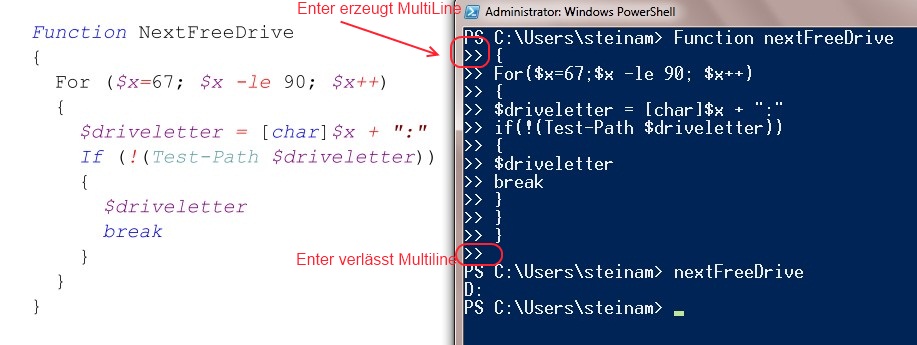
Spätestens jetzt wird der Einsatz eines Editors bzw. der grafischen Version der Powershell überlegenswert.
Eine Darstellung des gesamten Funktion kann man mit folgender Zeile erreichen
$function:NextFreeDrive
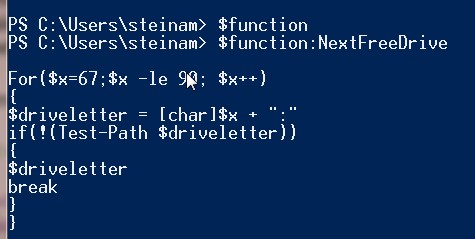
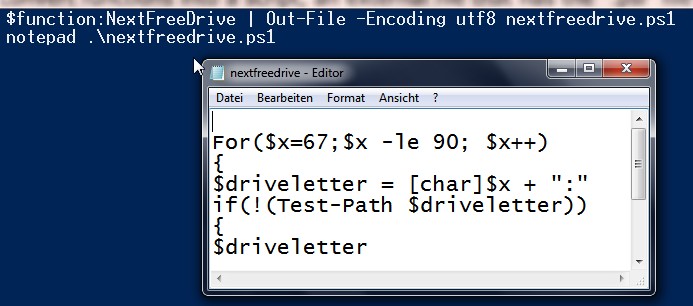
Die Ausgabe einer Funktion in eine Textdatei kann man z.B. mit dem Out-File-Commandlet erreichen
$function:NextFreeDrive | Out-File -Encoding utf8 nextfreedrive.ps1
notepad .\nextfreedrive.ps1
Häufig will man einer Funktion Informationen mit übergeben, die diese dann weiterverarbeiten soll. Dies wird mit Hilfe von sog. Argumenten bewerkstelligt. Es gibt 4 verschiedene Arten der Argumentübergabe
die $args variable (Array) beinhaltet alle Parameter, die einer Funktion übergeben werden. Damit ist sie eine gute Lösung, wenn eine flexible Anzahl von Parametern übergeben werden soll.
function add()
{
        $i = 0
        foreach($_ in $args)
        {
                $i = $i +  $_

        }

        Write-Host $i

}
Eine Funktion kann auch pro Parameter einen Namen vergeben. Damit ist die Reihenfolge der Parameter beliebig, weil Sie über den Namen aufgelöst werden.
function add1($value1, $value2)
{
        Write-Host ($value1 + $value2)
}
add1 -value2 10 -value1 10
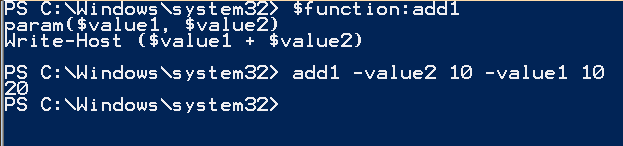
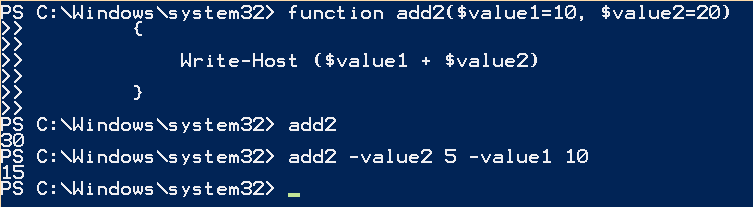
Parameter können mit default-Werten versehen sein. Falls der Benutzer keine eigenen Werte übergibt, werden die default-Werte genommen.
function add2($value1=10, $value2=20)
{
        Write-Host ($value1 + $value2)
}

add -value2 10 -value1 10
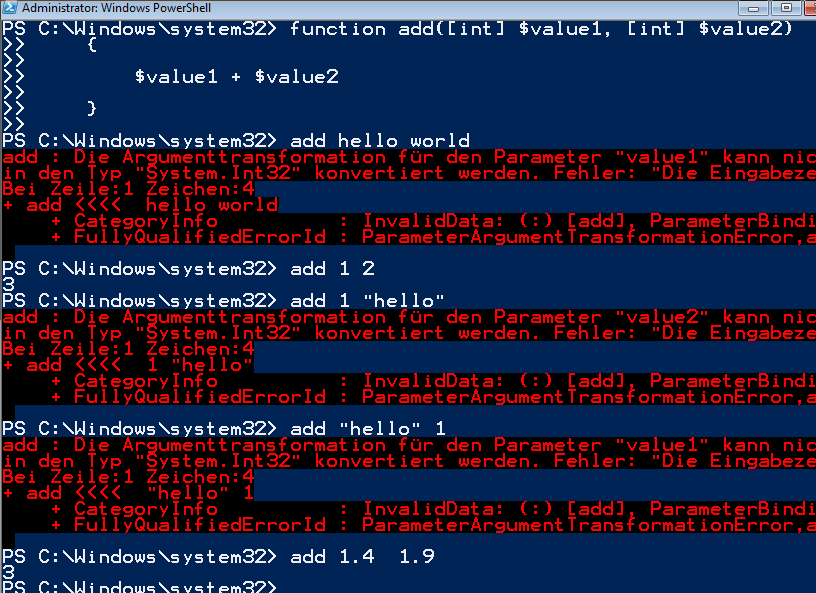
Parameter können mit einem bestimmten Datentyp definiert werden, um sicherzustellen, dass nur die Argumente aus “richtigen” Datentypen bestehen.
function add([int] $value1, [int] $value2)
{
        $value1 + $value2
}
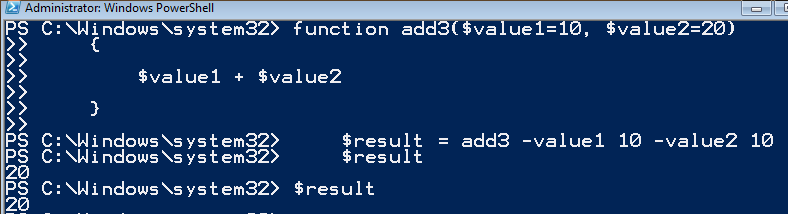
In Powershell geben Funktionen nie nur einen Wert zurück sondern immer alles. Wenn man die Funktion lediglich aufruft, gibt die Funktion die Ausgabe über die Konsole aus. Die Ausgabe kann aber auch in einer Variablen gefangen werden.
function add3($value1=10, $value2=20)
{
        $value1 + $value2
}

$result = add3 -value1 10 -value2 10
$result
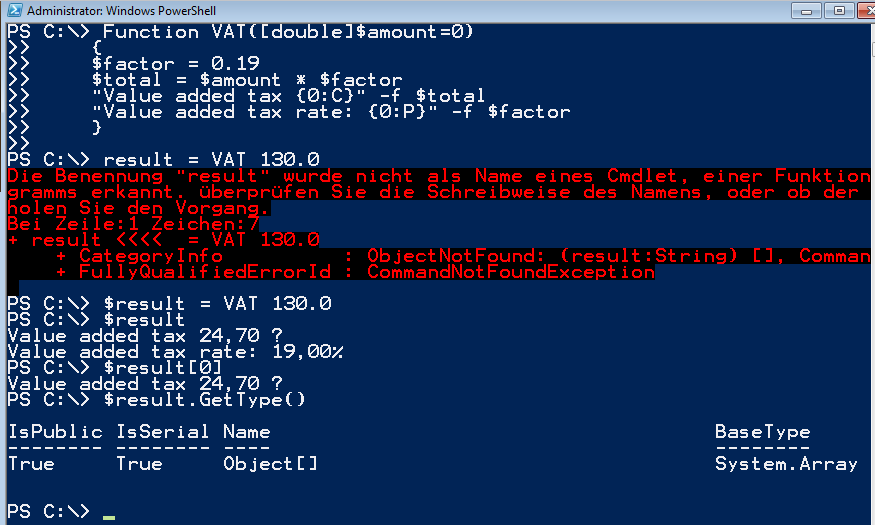
Solange die Funktion nur einen Wert zurückliefert, ist der Rückgabetyp quasi eine Variable. Falls mehrere Ausgaben erfolgen würden, wird die Ausgabe in einen Array gekapselt. Dieser kann von der aufrufenden Seite aus beliebig angepackt werden.
function VAT([double]$amount=0)
{
        $amount * 0.19
}
# An interactively invoked function
# output results in the console:
VAT 130.67
24.8273
# But the result of the function can
# also be assign to a variable:
$result = VAT 130.67
$result
24.8273
# The result is a single number value
# of the "double" type:
$result.GetType().Name
Double

Function VAT([double]$amount=0)
{
        $factor = 0.19
        $total = $amount * $factor
        "Value added tax {0:C}" -f $total
        "Value added tax rate: {0:P}" -f $factor
}

The function returns two results:
VAT 130.67
Value added tax $24.83
Value added tax rate: 19.00%
# All results are stored in a single variable:
$result = VAT 130.67
$result
Value added tax $24.83
Value added tax rate: 19.00%
# Several results are automatically stored in an array:
$result.GetType().Name
Object[]
# You can get each separate result of the
# function by using the index number:
$result[0]
Value added tax $24.83
# The data type of the respective array element
# corresponds to the included data:
$result[0].GetType().Name
String
Das RETURN-Statement hat in der Powershell nicht die selbe Bedeutung wie in anderen Programmiersprachen, da Funktionen immer alles zurückgeben. Es wurde dennoch implementiert, vor allem aus 2 Gründen:
Function Add([double]$value1, [double]$value2)
{
        # This time the function returns a whole
        # series of oddly assorted results:
        "Here the result follows:"
        1
        2
        3
        # Return also returns a further result:
        return $value1 + $value2

        # This statement will no longer be executed
        # because the function will exit when return is used:
        "Another text"
}
Add 1 6
Here the result follows:
1
2
3
7
$result = Add 1 6
$result
Here the result follows:
1
2
3
7
Häufig hat man bestimmte Ausgaben nur für Kontrollzwecke bzw. Debug-Ausgaben in eine Funktion integriert. Im Produktiveinsatz will man diese Ausgaben nicht sehen und benötigt sie auch nicht.
Folgendes Beispiel zeigt mögliche Alternativen:
Function Test
{
        "Calculation will be performed"
        $a = 12 * 10
        "Result will be emitted"
        "Result is: $a"
        "Done"
}
Test
Calculation will be performed
Result will be emitted
Result is: 120
Done

$result = Test
$result
Für diesen Zweck gibt es mehrere Möglichkeiten.
Das Cmdlet Write-Host gibt die Ausgabe sofort an die Konsole weiter
Function Test
{
        Write-Host "Calculation will be performed"
        $a = 12 * 10
        Write-Host "Result will be emitted"
        "Result is: $a"
        Write-Host "Done"
}
# This time your debugging reports will already
# be output when the function is executed:
$result = test
Calculation will be performed
Result will be emitted
Done
# The result will no long include your debugging reports:
$result
Result is: 120
Mit Hilfe des Write-Debug-Cmdlets können Ausgaben nur zu Debug-Zwecken ausgegeben werden. Voraussetzung st allerdings, dass man die globale Variabel $DebugPrefeence auf “SilentlyContinue” stellt
Function Test
{
        Write-Debug "Calculation will be performed"
        $a = 12 * 10
        Write-Debug "Result will be emitted"
        "Result is: $a"
        Write-Debug "Done"
}
# Debugging reports will remain completely
# invisible in the production environment:
$result = Test
# If you would like to debug your function,
# turn on reporting:
$DebugPreference = "Continue"
# Your debugging reports will now be output
# with the "DEBUG:" prefix and output in yellow:
$result = Test
DEBUG: Calculation will be performed
DEBUG: Result will be emitted
DEBUG: Done
# They are not contained in the result:
$result
Result is: 120
# Everything is running the way you wish;
# turn off debugging:
$DebugPreference = "SilentlyContinue"
$result = Test
Fehlermeldungen werden normalerweise immer sofort ausgegeben, was natürlich den Ablauf eines Skriptes stören kann. Auch hier gibt es wieder eine globale Variable, welches die Ausgabe von Fehlermeldungen steuern kann.
Function Test
{
        # Suppress all error messages from now on:
        $ErrorActionPreference = "SilentlyContinue"
        Stop-Process -name "Unavailableprocess"
        # Immediately begin outputting all error messages again:
        $ErrorActionPreference = "Continue"
        1/$null
}
# Error messages will be suppressed in certain
# areas but not in others:
$result = Test
Um den Nutzer einer Funktion auch innerhalb der Powershell mit Informationen über die Funktion versorgen zu können, kann man sowohl Funktionen als auch das ganze Skript mit einer sog. Inline-Help ausstatten. Im Grunde handelt es sich dabei um eine Abfolge von Kommentarzeilen, die mit bestimmten Schlüsselworten versehen worden sind.
Details der Anwendung gibt es unter http://technet.microsoft.com/en-us/library/dd819489.aspx
<#
 .SYNOPSIS
         Dieses Skript gibt eine Liste der nicht funktionierenden HArdware aus mit Hilfe von WMI.
 .DESCRIPTION
         Per WMI werden zunächst die Systemdetails ermittelt und dann die Hardware mit Fehlern.
 .NOTES
         File Name  : Get-BrokenHardware.ps1
         Author     : Karl Steinam - teetscher
         Requires   : PowerShell Version 2.0
 .LINK
         Siehe auch:
                 http://www.meineFirma.de
 .EXAMPLE
         PSH [C:\foo]: Get-BrokenHardware.ps1
         Computer Details:
         Manufacturer: Dell Inc.
         Model:        Precision WorkStation T7400
         Service Tag:  6Y84C3J

         Hardware thats not working list
         Description:  WD My Book Device USB Device
         Device ID:    USBSTOR\OTHER&VEN_WD&PROD_MY_BOOK_DEVICE&REV_1010\7&2A4E07C&0&575532513130303732383932&1
         Error ID:     28
 #>

 # Display Computer details
 "Computer Details:"
 $comp = gwmi Win32_ComputerSystem
 "Manufacturer: {0}" -f $comp.Manufacturer
 "Model:        {0}" -f $comp.Model
 $computer2 = Get-WmiObject Win32_ComputerSystemProduct
 "Service Tag:  {0}" -f $computer2.IdentifyingNumber
 ""

 #Get hardware that is errored
 "Hardware that's not working list"
 $broken = Get-WmiObject Win32_PnPEntity | where {$_.ConfigManagerErrorCode -ne 0}

 #Display broken hardware
 foreach ($obj in $broken){
 "Description:  {0}" -f  $obj.Description
 "Device ID:    {0}" -f  $obj.DeviceID
 "Error ID:     {0}" -f  $obj.ConfigManagerErrorCode
 ""
 }
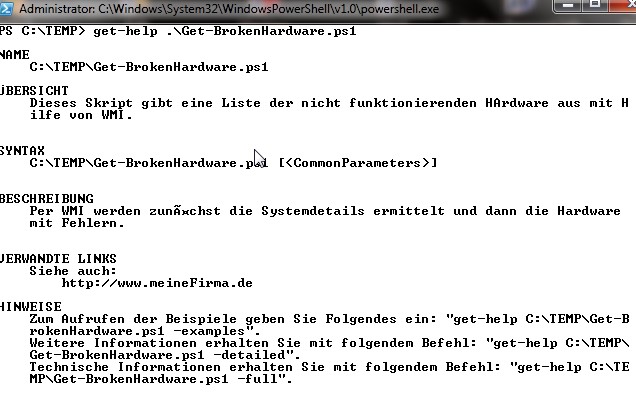
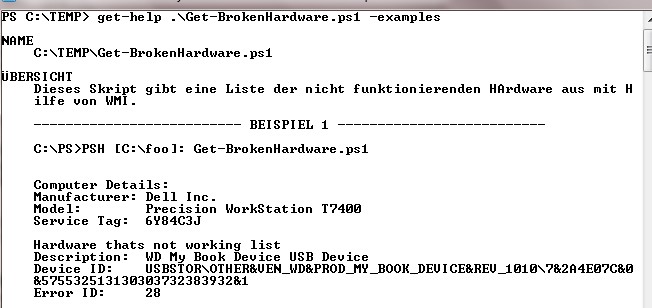
Das nächste Beispiel fügt einer Funktion eine Inline-Help hinzu.
<#
        .SYNOPSIS
        Adds a file name extension to a supplied name.

        .DESCRIPTION
        Adds a file name extension to a supplied name.
        Takes any strings for the file name or extension.

        .PARAMETER Name
        Specifies the file name.

        .PARAMETER Extension
        Specifies the extension. "Txt" is the default.

        .INPUTS
        None. You cannot pipe objects to Add-Extension.

        .OUTPUTS
        System.String. Add-Extension returns a string with the extension or file name.

        .EXAMPLE
        C:\PS> extension -name "File"
        File.txt

        .EXAMPLE
        C:\PS> extension -name "File" -extension "doc"
        File.doc

        .EXAMPLE
        C:\PS> extension "File" "doc"
        File.doc

        .LINK
        http://www.fabrikam.com/extension.html

        .LINK
        Set-Item
        #>
function Add-Extension2
{
        param ([string]$Name,[string]$Extension = "txt")
        $name = $name + "." + $extension
        $name


}
Je nach Laune kann die Inline-Help auch innerhalb der Funktion geschrieben werden.
Siehe:
http://www.powershellpro.com/powershell-tutorial-introduction/powershell-scripting-with-wmi/
http://www.powershellpro.com/computernames-activedirectory/149/
http://www.powershellpro.com/powershell-tutorial-introduction/powershell-scripting-with-wmi/
http://technobeans.wordpress.com/2010/11/25/powershell-getting-inventory-details/
Vorausetzung:
Installiertes CIM-Studio zur Abfrage des WMI
Im folgenden Beispiel sollen mit Hilfe von WMI verschiedene Informationen des lokalen Rechners abgerufen werden. In weiteren Schritten wird die Suche auf beliebige Rechner ausgeweitet. Im letzten Schritt werden Informationen des ActiveDirectory genutzt, um eine komfortable Liste der Rechner zu erhalten.
Scenario:
Ihr Chef will eine Inventur der Hardware aller Server und Rechner im Netzwerk. Insbesondere will er folgende Informationen.
- Machine manufacturer, model number, and serial number.
- BIOS information to determine if updates are required,
- OS type
- CPU information: Manufacturer, type, speed, and version.
- Amount of memory in each server.
- Disk information: Size, interface type, and media type.
- Network Information: IP settings and MAC address.
WMI ist im Grunde eine Datenbank von Informationen, das auf jeden Windows System vorhanden ist. Über den sog. WMI-Service kann man die jeweils gewünschten Daten abrufen.
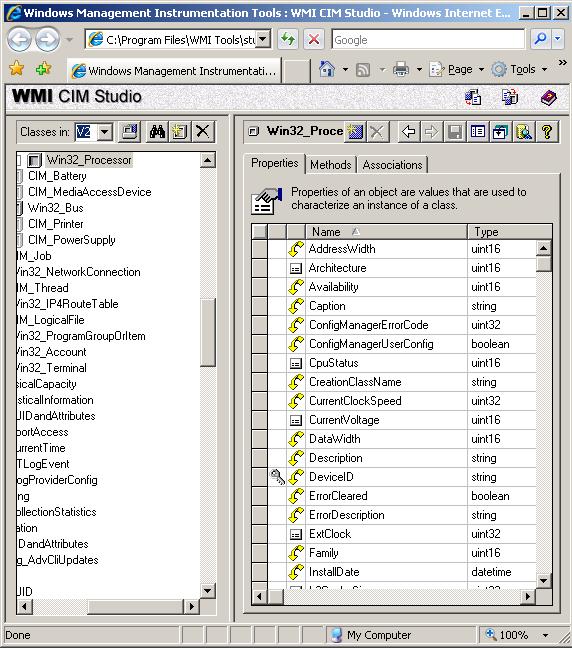
Von Powershell aus ist die Vorgehensweise relativ einfach: :-)
Get-WmiObject -List -Namespace "root\CIMV2"
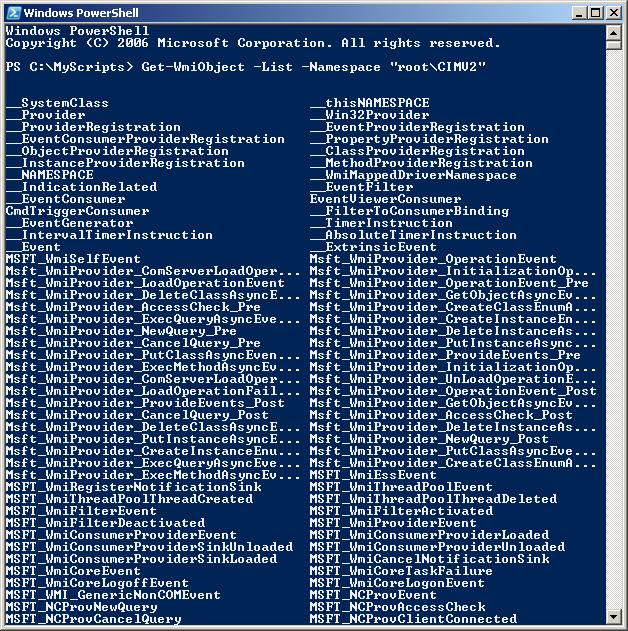
Eine etwas kleinere Ausgabe gibt es, wenn man die Ausgabe auf bestimmte Inhalte beschränkt, in unserem Beispiel
Get-WmiObject Win32_ComputerSystem | Format-List *
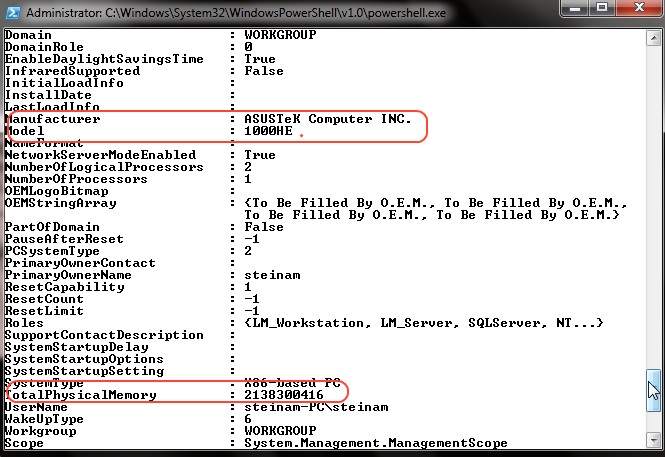
Welche Informationen entsprechen den Anforderungen ?
- Manufacturer = Manufacturer property.
- Model Number = Model property.
- Serial Number = Nicht vorhanden; sie muss anderweitig gesucht werden
- Gesamtspeicher = TotalPhysicalMemory-Eigenschaft existiert in der Klasse und genügt unseren Ansprüchen.
Schritt 1: Machine manufacturer, model number, and serial number
1 2 3 4 5 6 7 8 9 10 11 12 13 14 | #sets the computer to local
$strComputer ="."
#Creates a variable called $colItems which contains the WMI Object
$colItems = Get-WmiObject Win32_ComputerSystem -Namespace "root\CIMV2" -ComputerName $strComputer
#Use a foreach loop to iterate the $colItems (collection).
#Store the properties information in the $objItem Variable.
foreach($objItem in $colItems) {
#Use the Write-Host cmdlet to output required property information
Write-Host "Computer Manufacturer: " $objItem.Manufacturer
Write-Host "Computer Model: " $objItem.Model
Write-Host "Total Memory: " $objItem.TotalPhysicalMemory "bytes"
}
|
Schritt 2: BIOS-Information
Die entsprechende Klasse im WMI ist Win32_BIOS
Get-WmiObject Win32_BIOS | Format-List *
1 2 3 4 5 6 7 8 9 10 | $strComputer = "."
$colItems = Get-WmiObject Win32_BIOS -Namespace "root\CIMV2" -computername $strComputer
foreach($objItem in $colItems)
{
Write-Host "BIOS:"$objItem.Description
Write-Host "Version:"$objItem.SMBIOSBIOSVersion"."
$objItem.SMBIOSMajorVersion"."$objItem.SMBIOSMinorVersion
Write-Host "Serial Number:" $objItem.SerialNumber
}
|
Schritt 3: Übrige Informationen
OS TYPE:
1 2 3 4 5 6 | $strComputer = "."
$colItems = Get-WmiObject Win32_OperatingSystem -Namespace "root\CIMV2" -Computername $strComputer
foreach($objItem in $colItems) {
Write-Host "Operating System:" $objItem.Name
}
|
CPU Info:
1 2 3 4 5 6 7 | $strComputer = "."
$colItems = Get-WmiObject Win32_Processor -Namespace "root\CIMV2" -Computername $strComputer
foreach($objItem in $colItems) {
Write-Host "Processor:" $objItem.DeviceID $objItem.Name
}
|
DISK Info:
1 2 3 4 5 6 7 8 9 10 11 | $strComputer = "."
$colItems = Get-WmiObject Win32_DiskDrive -Namespace "root\CIMV2" -ComputerName $strComputer
foreach($objItem in $colItems)
{
Write-Host "Disk:" $objItem.DeviceID
Write-Host "Size:" $objItem.Size "bytes"
Write-Host "Drive Type:" $objItem.InterfaceType
Write-Host "Media Type: " $objItem.MediaType
}
|
NETWORK Info:
1 2 3 4 5 6 7 8 9 10 11 | $strComputer = "."
$colItems = Get-WmiObject Win32_NetworkAdapterConfiguration -Namespace "root\CIMV2"
-ComputerName $strComputer | where{$_.IPEnabled -eq "True"}
foreach($objItem in $colItems) {
Write-Host "DHCP Enabled:" $objItem.DHCPEnabled
Write-Host "Subnet Mask:" $objItem.IPSubnet
Write-Host "Gateway:" $objItem.DefaultIPGateway
Write-Host "MAC Address:" $ojbItem.MACAddress
}
|
Kapseln der Code-Schnipsel in Funktionen
Zur übersichtlicheren Handhabung werden wir die einzelnen Codeelemente in Funktionen kapseln. Alle Funktionen werden in die Datei ServerInventory.ps1 geschrieben.
1 2 3 4 5 6 7 8 9 10 11 12 13 14 15 16 17 18 19 20 21 22 23 24 25 26 27 28 29 30 31 32 33 34 35 36 37 38 39 40 41 42 43 44 45 46 47 48 49 50 51 52 53 54 55 56 57 58 59 60 61 62 63 64 65 66 67 68 69 70 71 72 73 74 75 76 77 78 79 80 81 82 83 84 85 86 87 88 89 90 91 92 93 94 95 96 97 98 99 100 101 102 103 104 105 106 107 108 109 110 111 112 113 114 115 116 117 118 119 120 121 122 123 124 125 126 127 128 129 130 131 132 133 134 135 136 137 138 139 140 141 142 143 144 145 146 147 148 149 150 151 152 153 154 155 156 157 158 159 160 161 162 163 164 165 166 167 168 169 170 171 172 | #* FileName: ServerInventory.ps1
#*=============================================================================
#* Script Name: [ServerInventory]
#* Created: [07/08/2010]
#* Author: Karl Steinam
#* Company: Inuit Corp.
#* Email:
#* Web: http://www.inuit.com
#* Reqrmnts:
#* Keywords:
#*=============================================================================
#* Purpose: Server Hardware Inventory
#*=============================================================================
#*=============================================================================
#* REVISION HISTORY
#*=============================================================================
#* Date: [DATE_MDY]
#* Time: [TIME]
#* Issue:
#* Solution:
#*=============================================================================
#*=============================================================================
#* FUNCTION LISTING
#*=============================================================================
#* Function: SysInfo
#* Created: [12/14/07]
#* Author: Karl Steinam
#* Arguments:
#*=============================================================================
#* Purpose: WMI Function that enumerate win32_ComputerSystem properties
#*
#*
#*=============================================================================
Function SysInfo {
$colItems = Get-WmiObject Win32_ComputerSystem -Namespace "root\CIMV2"
-ComputerName $strComputer
foreach($objItem in $colItems) {
Write-Host "Computer Manufacturer: " $objItem.Manufacturer
Write-Host "Computer Model: " $objItem.Model
Write-Host "Total Memory: " $objItem.TotalPhysicalMemory "bytes"
}
}
#*=============================================================================
#* FUNCTION LISTING
#*=============================================================================
#* Function: BIOSInfo
#* Created: [07/08/2010]
#* Author: Karl Steinam
#* Arguments:
#*=============================================================================
#* Purpose: WMI Function that enumerate win32_BIOS properties
#*
#*
#*=============================================================================
Function BIOSInfo {
$colItems = Get-WmiObject Win32_BIOS -Namespace "root\CIMV2" -computername $strComputer
foreach($objItem in $colItems) {
Write-Host "BIOS:"$objItem.Description
Write-Host "Version:"$objItem.SMBIOSBIOSVersion"."
$objItem.SMBIOSMajorVersion"."$objItem.SMBIOSMinorVersion
Write-Host "Serial Number:" $objItem.SerialNumber
}
}
#*=============================================================================
#* FUNCTION LISTING
#*=============================================================================
#* Function: OSInfo
#* Created: [07/08/2010]
#* Author: Karl Steinam
#* Arguments:
#*=============================================================================
#* Purpose: WMI Function that enumerate win32_OperatingSystem properties
#*
#*
#*=============================================================================
Function OSInfo {
$colItems = Get-WmiObject Win32_OperatingSystem -Namespace "root\CIMV2" -Computername $strComputer
foreach($objItem in $colItems) {
Write-Host "Operating System:" $objItem.Name
}
}
#*=============================================================================
#* FUNCTION LISTING
#*=============================================================================
#* Function: CPUInfo
#* Created: [07/08/2010]
#* Author: Karl Steinam
#* Arguments:
#*=============================================================================
#* Purpose: WMI Function that enumerate win32_Processor properties
#*
#*
#*=============================================================================
Function CPUInfo {
$colItems = Get-WmiObject Win32_Processor -Namespace "root\CIMV2" -Computername $strComputer
foreach($objItem in $colItems) {
Write-Host "Processor:" $objItem.DeviceID $objItem.Name
}
}
#*=============================================================================
#* FUNCTION LISTING
#*=============================================================================
#* Function: DiskInfo
#* Created: [07/08/2010]
#* Author: Karl Steinam
#* Arguments:
#*=============================================================================
#* Purpose: WMI Function that enumerate win32_DiskDrive properties
#*
#*
#*=============================================================================
Function DiskInfo {
$colItems = Get-WmiObject Win32_DiskDrive -Namespace "root\CIMV2" -ComputerName $strComputer
foreach($objItem in $colItems) {
Write-Host "Disk:" $objItem.DeviceID
Write-Host "Size:" $objItem.Size "bytes"
Write-Host "Drive Type:" $objItem.InterfaceType
Write-Host "Media Type: " $objItem.MediaType
}
}
#*=============================================================================
#* FUNCTION LISTING
#*=============================================================================
#* Function: NetworkInfo
#* Created: [07/08/2010]
#* Author: Karl Steinam
#* Arguments:
#*=============================================================================
#* Purpose: WMI Function that enumerate win32_NetworkAdapterConfiguration
#* properties
#*
#*=============================================================================
Function NetworkInfo {
$colItems = Get-WmiObject Win32_NetworkAdapterConfiguration -Namespace "root\CIMV2" -ComputerName $strComputer | where{$_.IPEnabled -eq "True"}
foreach($objItem in $colItems) {
Write-Host "DHCP Enabled:" $objItem.DHCPEnabled
Write-Host "IP Address:" $objItem.IPAddress
Write-Host "Subnet Mask:" $objItem.IPSubnet
Write-Host "Gateway:" $objItem.DefaultIPGateway
Write-Host "MAC Address:" $ojbItem.MACAddress
}
}
|
In Powershell müssen die Funktionen vor der ersten Benutzung definiert worden sein. Der Aufruf des Funktionen erfolgt dann einfach am Ende des Skriptes.
1 2 3 4 5 6 7 8 9 10 11 12 13 14 15 16 17 18 19 20 21 22 23 24 25 26 27 28 29 30 31 32 33 34 35 36 37 38 39 | #*=============================================================================
#* SCRIPT BODY
#*=============================================================================
#* Connect to computer
$strComputer = "."
#* Call SysInfo Function
Write-Host "Sytem Information"
SysInfo
Write-Host
#* Call BIOSinfo Function
Write-Host "System BIOS Information"
BIOSInfo
Write-Host
#* Call OSInfo Function
Write-Host "Operating System Information"
OSInfo
Write-Host
#* Call CPUInfo Function
Write-Host "Processor Information"
CPUInfo
Write-Host
#* Call DiskInfo Function
Write-Host "Disk Information"
DiskInfo
Write-Host
#* Call NetworkInfo Function
Write-Host "Network Information"
NetworkInfo
Write-Host
#*=============================================================================
#* END OF SCRIPT: [ServerInventory]
#*=============================================================================
|
Abfrage eines anderen Computers
Zur Zeit fragt das Skript nur die Daten des eigenen Computers ab. Um auch remote arbeiten zu können, muss die Variable $strComputer ersetzt werden.
$strComputer = Read-Host "Enter Computer Name"
Write-Host "Computer:" $strComputer
Optimierungen
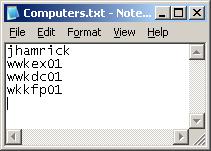
Erzeugen Sie eine Textdatei und fügen Sie Computernamen ein. Erweiteren Sie das Skript so, dass es die Textdatei ausliest und den jeweiligen Computer abfragt.
1 2 3 4 5 6 7 8 9 10 11 12 13 14 15 16 17 18 19 20 21 22 23 24 25 26 27 28 29 30 31 32 33 34 35 36 37 38 39 40 41 42 43 44 45 46 47 | #*=============================================================================
#* SCRIPT BODY
#*=============================================================================
#* Create and array from C:\MyScripts\Computers.txt
$arrComputers = get-Content -Path "C:\MyScripts\Computers.txt"
foreach ($strComputer in $arrComputers)
{ #Function Calls go here
Write-Host "Computer Name:" $strComputer
Write-Host "======================================"
#* Call SysInfo Function
Write-Host "Sytem Information"
SysInfo
Write-Host
#* Call BIOSinfo Function
Write-Host "System BIOS Information"
BIOSInfo
Write-Host
#* Call OSInfo Function
Write-Host "Operating System Information"
OSInfo
Write-Host
#* Call CPUInfo Function
Write-Host "Processor Information"
CPUInfo
Write-Host
#* Call DiskInfo Function
Write-Host "Disk Information"
DiskInfo
Write-Host
#* Call NetworkInfo Function
Write-Host "Network Information"
NetworkInfo
Write-Host "End of Report for $strComputer"
Write-Host "======================================"
Write-Host
Write-Host
} #End function calls.
|
Auslesen der Computer aus dem AD
Um sich die Eingabe der Computer in eine Textdatei zu ersparen, kann man auch innerhalb einer Windows-Domäne das ActiveDirectory befragen. Folgendes Skript liefert die Daten der Computernamen innerhalb des AD.
1 2 3 4 5 6 7 8 9 10 11 12 13 14 15 16 17 18 19 20 21 22 | #GetPCNames.ps1
$strCategory = "computer"
$objDomain = New-Object System.DirectoryServices.DirectoryEntry
$objSearcher = New-Object System.DirectoryServices.DirectorySearcher
$objSearcher.SearchRoot = $objDomain
$objSearcher.Filter = ("(objectCategory=$strCategory)")
$colProplist = "name"
foreach ($i in $colPropList)
{
$objSearcher.PropertiesToLoad.Add($i)
}
$colResults = $objSearcher.FindAll()
foreach ($objResult in $colResults)
{
$objComputer = $objResult.Properties; $objComputer.name
}
|
Speichern Sie das Skript als GetPCNames.ps1, starten Sie es innerhalb ihrer Domäne und speichern Sie das Ergebnis in der Datei Computers.txt
.\GetPCNames.ps1 > "C:\MyScripts\Computers.txt"